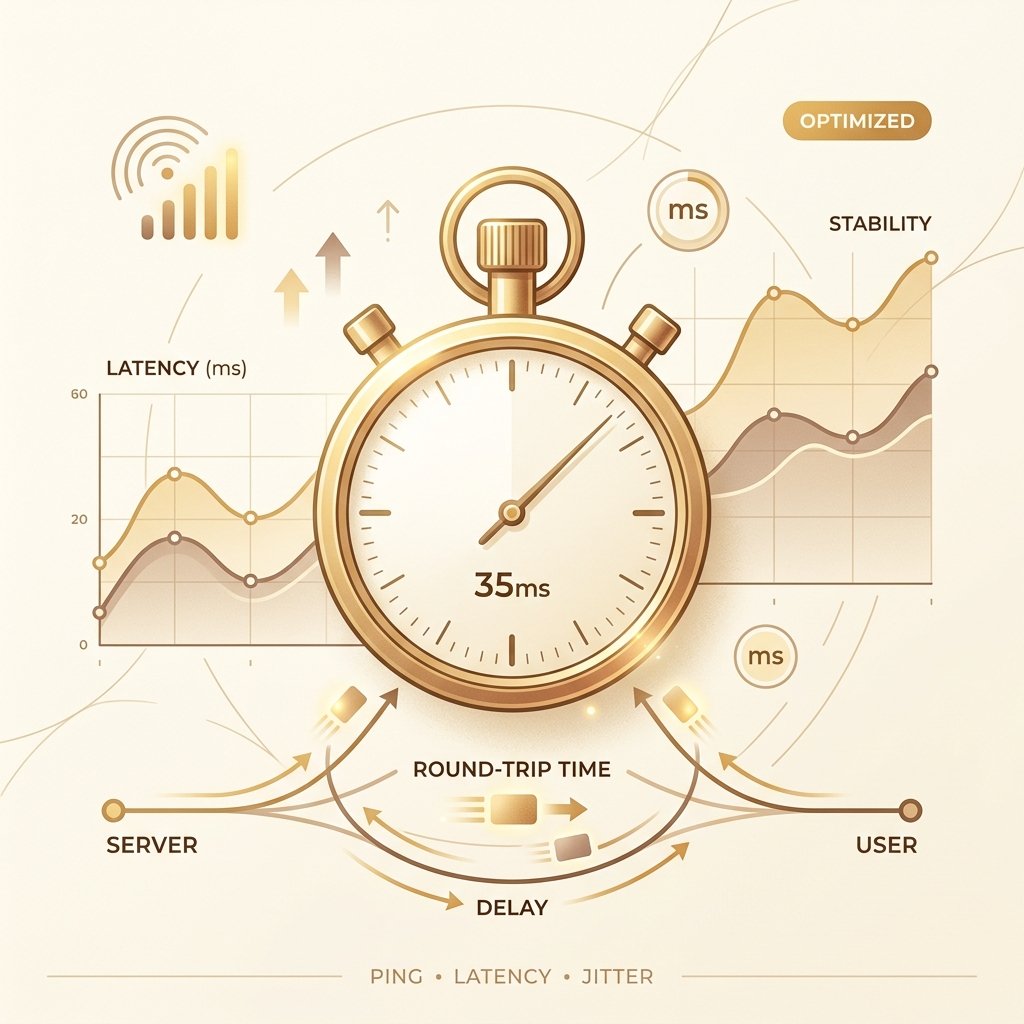
Ping (network latency) measures the round-trip travel time for data to go from your device to a server and return. It determines the responsiveness of your connection.
Ping vs. Latency vs. RTT: Clarifying the Terminology
In the world of networking and speed diagnostics, the terms "ping," "latency," and "round-trip time (RTT)" are frequently tossed around as if they were identical. However, to network engineers and optimization enthusiasts, they represent distinct concepts. Latency, in its purest form, refers to the time it takes for a single data packet to travel from its source (your device) to its destination (a remote server). This is a unidirectional, one-way measurement. Because measuring one-way latency requires extremely precise time synchronization (like atomic clocks or synchronized GPS receivers) at both ends of the connection, it is rarely measured in standard speed tests. Instead, we measure the Round-Trip Time (RTT), which is the total duration starting from when a packet is sent from the client to when the acknowledgment response is received back.
The term "Ping" originates from a command-line network utility created by Mike Muuss in 1983. Named after the active sonar sound used by submarines, the ping utility measures RTT by utilizing the Internet Control Message Protocol (ICMP). Specifically, it transmits an ICMP Echo Request (Type 8) packet to the target IP address and waits for an ICMP Echo Reply (Type 0) packet. Therefore, while latency is the underlying physical delay, and RTT is the round-trip time metric, "ping" is technically the utility used to measure it, though colloquially it has become synonymous with RTT.
To understand why a connection is fast or slow, we must decompose latency into its four physical components. The first is Propagation Delay, which is the physical limit of data travel. It is determined by the distance the packet must cover and the physical medium it travels through. In fiber-optic cables, data travels as light waves through glass at approximately 200,000 kilometers per second (about two-thirds the speed of light in a vacuum). This introduces a baseline physical latency of roughly 5 milliseconds for every 1,000 kilometers traveled. Copper lines and wireless transmissions propagate signals at slightly different speeds, but all are bound by physical laws of electromagnetism.
The second component is Transmission Delay, which is the time it takes to push all the bits of a packet onto the physical communication medium. This is governed by the bandwidth capacity of the connection and the packet size. For instance, pushing a 1,500-byte packet over a slow 1 Mbps DSL line takes much longer than pushing the same packet over a 1 Gbps fiber uplink. High-bandwidth connections minimize transmission delay, leaving propagation and queueing as the primary contributors to lag.
The third component is Queueing Delay, which occurs when network devices (like routers, switches, and firewalls) experience congestion. If packets arrive at a router faster than they can be transmitted, they are placed in a queue (a buffer). The time a packet spends waiting in this queue before being processed is the queueing delay, which fluctuates dynamically based on network traffic. When buffers are mismanaged or become excessively large, it leads to bufferbloat, which dramatically degrades real-time connection performance.
The fourth component is Processing Delay, which is the time it takes for network hardware to examine the packet header, determine its destination, run firewall security policies, handle Network Address Translation (NAT), and forward the packet. Modern ASIC (Application-Specific Integrated Circuit) chips in routers minimize this to microseconds, but heavy routing rules, deep packet inspection (DPI), or CPU overload on a home router can still introduce several milliseconds of delay.
Finally, the ICMP protocol itself plays a critical role. When you run a ping test, routers along the path handle ICMP traffic differently than typical TCP or UDP data. Many modern routers prioritize client data traffic and deprioritize ICMP packets, which can sometimes result in "artificial latency" or packet loss reported by ping tools even when actual web traffic is flowing smoothly. Understanding these components is essential to diagnosing why a connection feels laggy despite having high download speeds.
How Latency Affects Different Online Activities
While download and upload speeds determine how much data you can transfer at once, latency determines how responsive that transfer feels. Different online applications have drastically different tolerances for latency. In competitive online multiplayer gaming, low latency is the ultimate deciding factor of performance. Fast-paced genres like first-person shooters (FPS), fighting games, and sports simulators rely on real-time feedback loops. When you press a button, that action must be sent to the game server, processed, and reflected on other players' screens. High latency causes "peekers' advantage," where a player with high ping can round a corner and shoot an opponent before the opponent's client even registers their presence. It also results in "rubber-banding," a jarring phenomenon where the server disagrees with the client's local position estimation, forcing the player's character to teleport backward. Modern games use complex server-side lag compensation and client-side prediction algorithms, but these are merely band-aids for a high-ping connection.
In Voice over IP (VoIP) and real-time video conferencing (such as Zoom, Microsoft Teams, and Discord), low latency is critical to maintaining natural conversation. The ITU-T G.114 standard recommendation is that one-way latency should remain under 150 milliseconds for high-quality conversational speech. Once round-trip latency exceeds 250 to 300 milliseconds, users will experience conversational overlap, where they accidentally interrupt each other because they don't realize the other person has started speaking. Additionally, high latency combined with jitter causes packet re-ordering, which the VoIP codec struggles to decode, leading to digitized robotic voices, audio dropouts, and frozen video feeds.
For financial traders and online stock brokers, latency translates directly into monetary gains or losses. In high-frequency trading (HFT) and day trading, even a delay of 5 milliseconds can result in "slippage." Slippage occurs when a market order is placed, but by the time the packet reaches the exchange's matching engine, the price of the stock, cryptocurrency, or asset has changed, causing the order to execute at a less favorable price. Financial institutions spend millions of dollars establishing dedicated fiber-optic paths or microwave links between financial hubs like Chicago and New York to shave off single-digit milliseconds of latency, demonstrating its economic value.
Developers and network administrators who spend their days using SSH (Secure Shell) or remote desktop tools (RDP, VNC) are also highly sensitive to latency. When typing commands into a remote terminal, a latency of over 100 milliseconds creates a sluggish typing echo, where characters appear on the screen a split-second after they are typed. This breaks the sensory feedback loop and increases user errors. High latency on remote desktops also makes mouse cursor movements feel floaty, imprecise, and frustratingly laggy.
Even general web browsing and webpage load times are heavily influenced by latency, particularly with modern secure protocols. Loading a modern webpage requires making dozens of individual requests to multiple domains for images, scripts, stylesheets, and fonts. Before any data can be sent, a TCP handshake and a TLS encryption handshake must occur. Each of these handshakes requires multiple round trips between your browser and the server. If your ping is 150ms, the handshakes alone can add over half a second of delay before the page even begins to render, regardless of whether you have a 1,000 Mbps connection. While HTTP/2 and HTTP/3 (QUIC) multiplexing have reduced the impact of head-of-line blocking, low baseline latency remains the key to instant page rendering.
What is a Good Ping Rate?
Ping quality is not a single universal value; it is relative to the task at hand and the physical distance to the server. For example, a 10ms ping to a local server in your city is expected, but a 70ms ping to a server on the opposite coast is physically excellent. To help you evaluate the performance of your connection, we have classified latency ranges based on real-world usability.
The table below outlines how different ping ranges affect your online experience, from gaming to general browsing, giving you a clear benchmark to compare against your speed test results.
| Ping Range | Quality Rating | Online Experience & Usability |
|---|---|---|
| < 20 ms | Excellent | Instantaneous response. Ideal for high-stakes competitive gaming, high-frequency stock trading, and real-time audio collaboration. Webpages load instantly and SSH terminals feel local. |
| 20 - 50 ms | Good | Highly responsive. Perfect for casual multiplayer gaming, crisp HD video calls, and seamless 4K video streaming. The slight delay is imperceptible to the vast majority of users. |
| 50 - 100 ms | Fair | Acceptable responsiveness. You may experience minor delay disadvantages in fast-paced shooters, but MMORPGs, web browsing, and streaming will work without issue. VoIP calls remain clear. |
| 100 - 150 ms | Poor / High Latency | Noticeable delay. Interactive tasks feel sluggish. Real-time gaming is heavily impacted with delayed action registrations. Video calls may experience minor audio desync and conversational overlap. |
| > 150 ms | Critical Lag / Unacceptable | Severe lag. In-game characters will warp and actions are heavily delayed. Video conferences suffer from constant audio breakups and freezing. Web browsing feels sluggish due to handshake delays. |
What Causes High Ping and Packet Jumps?
When your ping test reports high values or sudden spikes (often called packet jumps or lag spikes), it is rarely due to a single issue. Understanding the root causes requires examining the entire path data travels. The most fundamental cause is Physical Distance and the Speed of Light in Fiber. As data travels through fiber-optic cables, it is bound by the laws of physics. Light in silica glass travels at roughly 200 km per millisecond. When you connect to a server 4,000 kilometers away, the round-trip distance is 8,000 kilometers. The absolute minimum physical transit time for light in glass over this distance is 40 milliseconds. When you add the delays introduced by passing through dozens of routers, switches, and media converters along the way, the real-world latency will easily exceed 60 to 70 milliseconds. Physical distance sets the immutable baseline floor for your ping.
Beyond distance, Routing Loops and Inefficient Network Paths frequently inflate latency. When your data leaves your home, your ISP uses the Border Gateway Protocol (BGP) to determine the routing path to the destination. Because BGP routing decisions are often based on commercial transit agreements and cost-saving peer relationships rather than physical distance, your packets might not take the straightest path. For instance, a packet traveling between two adjacent cities might be routed to a major internet exchange point hundreds of miles away and back again. If an ISP has a misconfigured routing table, it can create a routing loop where packets bounce back and forth between routers before heading to the target, causing massive ping spikes.
Another major factor is Congested ISP Interconnects and Peering Points. Internet service providers connect to each other at physical locations called Internet Exchange Points (IXPs). During peak usage hours (typically 7:00 PM to 11:00 PM), these peering links can become saturated with traffic. When an interconnect port reaches 100% capacity, routers must drop incoming packets or store them in deep memory buffers, causing immediate latency spikes and packet loss for anyone whose traffic passes through that exchange.
Wireless Transmission Overhead is the primary culprit for local network latency issues. Whether you are using WiFi (2.4 GHz, 5 GHz, or 6 GHz) or cellular data (4G LTE or 5G), sending data over the air adds delays. Wireless networks operate on a shared medium using collision avoidance protocols like CSMA/CA (Carrier Sense Multiple Access with Collision Avoidance). Before a device can transmit, it must listen to the airwaves to ensure no other device is broadcasting. If the spectrum is crowded with neighboring networks or baby monitors, your device must wait, adding queueing delay. Furthermore, physical obstacles like brick walls, metal beams, and glass attenuate the signal, causing packet corruption. This forces the hardware to perform automatic link-level retransmissions, which instantly triples the latency for those specific packets.
Finally, Bufferbloat represents one of the most frustrating causes of lag spikes. Bufferbloat occurs when your internet connection's upload or download bandwidth is fully saturated. To prevent packet loss, router manufacturers design deep memory buffers. When you start downloading a large game or uploading a video, the router fills these buffers with data. Time-sensitive packets (like game inputs or voice frames) get stuck in this deep buffer queue behind the heavy file transfer packets. Even if your idle ping is a pristine 10ms, bufferbloat can cause your active ping to spike to 300ms or higher the moment someone else on your network starts using the internet.
Complete Checklist to Lower Your Ping and Lag
Reducing latency requires a systematic approach to eliminate bottlenecks in both your local home network and your device configuration. While you cannot change the speed of light or fix your ISP's core routing, you can optimize almost everything else. Below is an actionable checklist to help you minimize lag.
• Switch to a Wired Ethernet Connection: If you are gaming, working, or calling over WiFi, the single most effective upgrade is switching to a physical Cat6 or Cat6A Ethernet cable. Ethernet operates in full-duplex mode (transmitting and receiving simultaneously) and is completely immune to the electromagnetic interference, signal attenuation, and channel contention that plague wireless connections. By eliminating wireless retransmissions, Ethernet reduces average ping by 5 to 20ms and completely eliminates random local lag spikes.
• Select Close Geographical Servers: Always verify that your applications and games are connecting to the nearest regional server. If you live in California, manually configure your game launcher or software settings to connect to "US West" or "Oregon" instead of "US East" or "Auto." Many matchmaking algorithms prioritize quick queue times over ping, placing you in distant lobbies unless you explicitly set your server preferences.
• Configure SQM QoS on Your Router: To eliminate bufferbloat, you must configure your router to manage traffic queues intelligently. Standard Quality of Service (QoS) setups merely prioritize certain devices, but Smart Queue Management (SQM)—utilizing modern queueing algorithms like FQ_CoDel (Fair Queueing Controlled Delay) or Cake—allocates bandwidth dynamically. SQM ensures that small, time-sensitive packets (like gaming and DNS) bypass the large, bulky queues of file downloads. This keeps your latency low even under 100% network load.
• Bypass Double NAT Configurations: If you have two routers connected in series (for example, a personal router plugged into a modem-router gateway provided by your ISP), you are running a "Double NAT" setup. This forces your packets to undergo Network Address Translation twice, adding processing overhead and causing packet routing conflicts. To resolve this, log into your ISP gateway's configuration page and enable "Bridge Mode" or "IP Passthrough," which disables its internal routing and NAT functions, passing the public IP directly to your personal router.
• Optimize Your Network Adapter Settings: You can fine-tune your device's network card settings through the operating system's device manager. For Windows users, navigate to your Ethernet adapter's advanced properties and disable energy-saving features like "Green Ethernet" and "Energy Efficient Ethernet." These features put your network card into low-power states during micro-moments of inactivity, adding physical wake-up latency when data resumes. Additionally, check that your network card drivers are fully updated from the manufacturer's site (Intel, Realtek, etc.) to benefit from latency-related firmware fixes.